





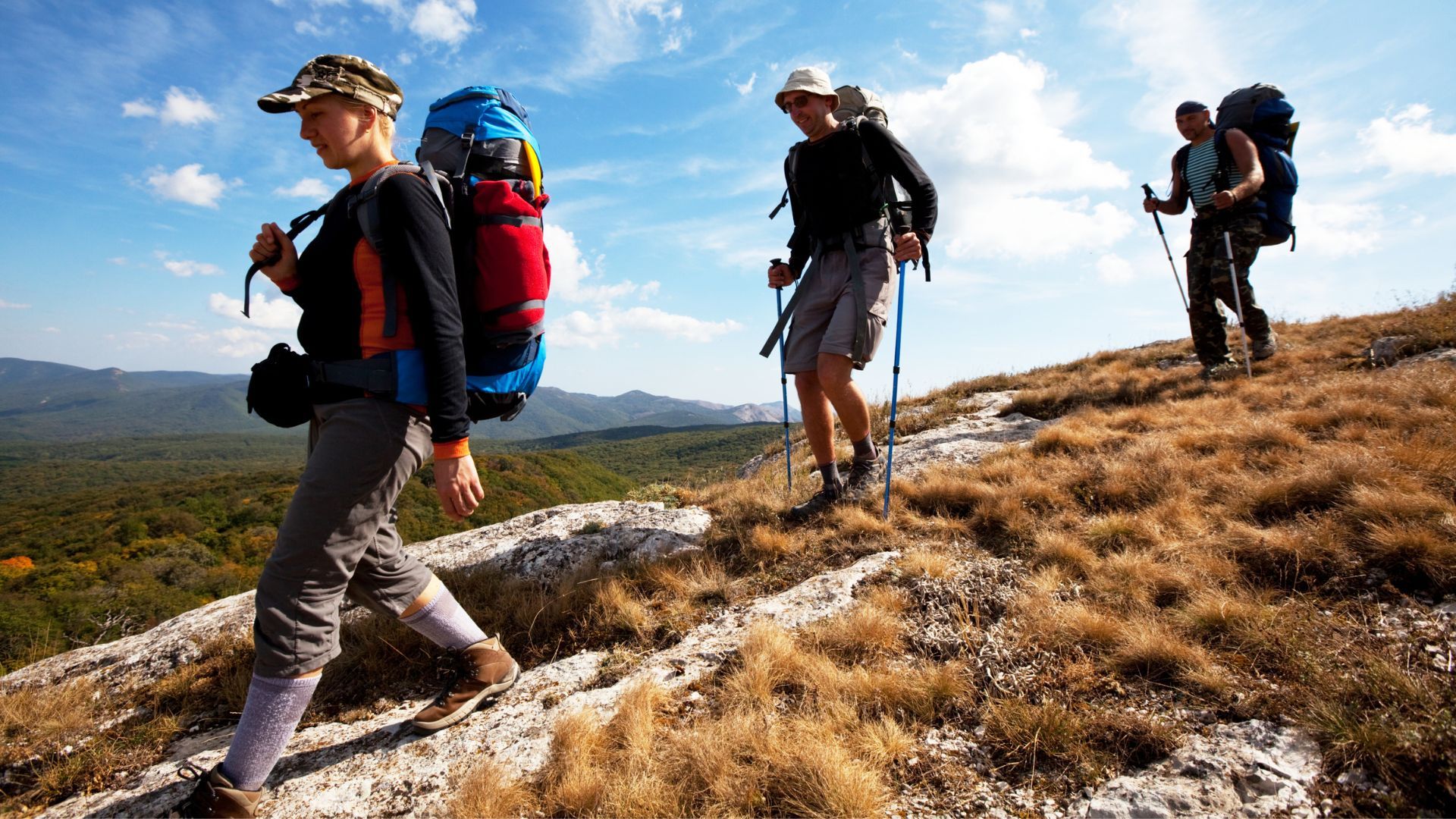
We are each our own greatest inhibitor. People don’t want to do new things if they think they’re going to be bad at them or people are going to laugh at them. You have to be willing to subject yourself to failure, to be bad, to fall on your head and do it again, and try stuff that you’ve never done in order to be the best you can be. ~ Laird Hamilton Yesterday: Hit Range Balls/Hike – Casa del Critters, 1:15 Today: Run – GGCSP, ~2 hours Tomorrow: Ride – Somewhere singlespeedy, ~2 hours Yesterday, Rach and I took a nice stroll in the woods around our house. The songbirds were going crazy-nuts and surprisingly, we only saw one other person walking his dog. I love where we live – close proximity to fun trails and the ability to get away from it all in just a short walk from our house. During lunch yesterday, I went to the driving range to get a few cuts in before playing a round of golf with my dad next week. I don’t get to play very often so need to brush up on my skills (or lack thereof) whenever I can. I am looking forward to playing with my pops and hope to break 100. I shot a 102 the last time I played so I am within striking distance of the sub-triple-digit score. We’ll see how things go. I usually do okay for most of the round and then fall apart on a couple of holes pushing my score way up. Dad shoots in the low 80s usually (I think). I am not sure I will ever play enough to be that good but it is fun to get out on the course now and again. I also went to see Dr. Paul yesterday for my ankle problem (which seems to have been resolved) and my knee (which is still a bit swollen but has decreased in size markedly over the past several days). The knee stems from my unscheduled nose-dive back in May (see this post for details). The shot some pictures and believe that everything is a-ok so that was good news. I just need to select better places for splashdowns in the future. And today is Luke’s birthday. Age is one place where I will always beat him but visit his blog to congratulate him on trying to catch up. Until next time…
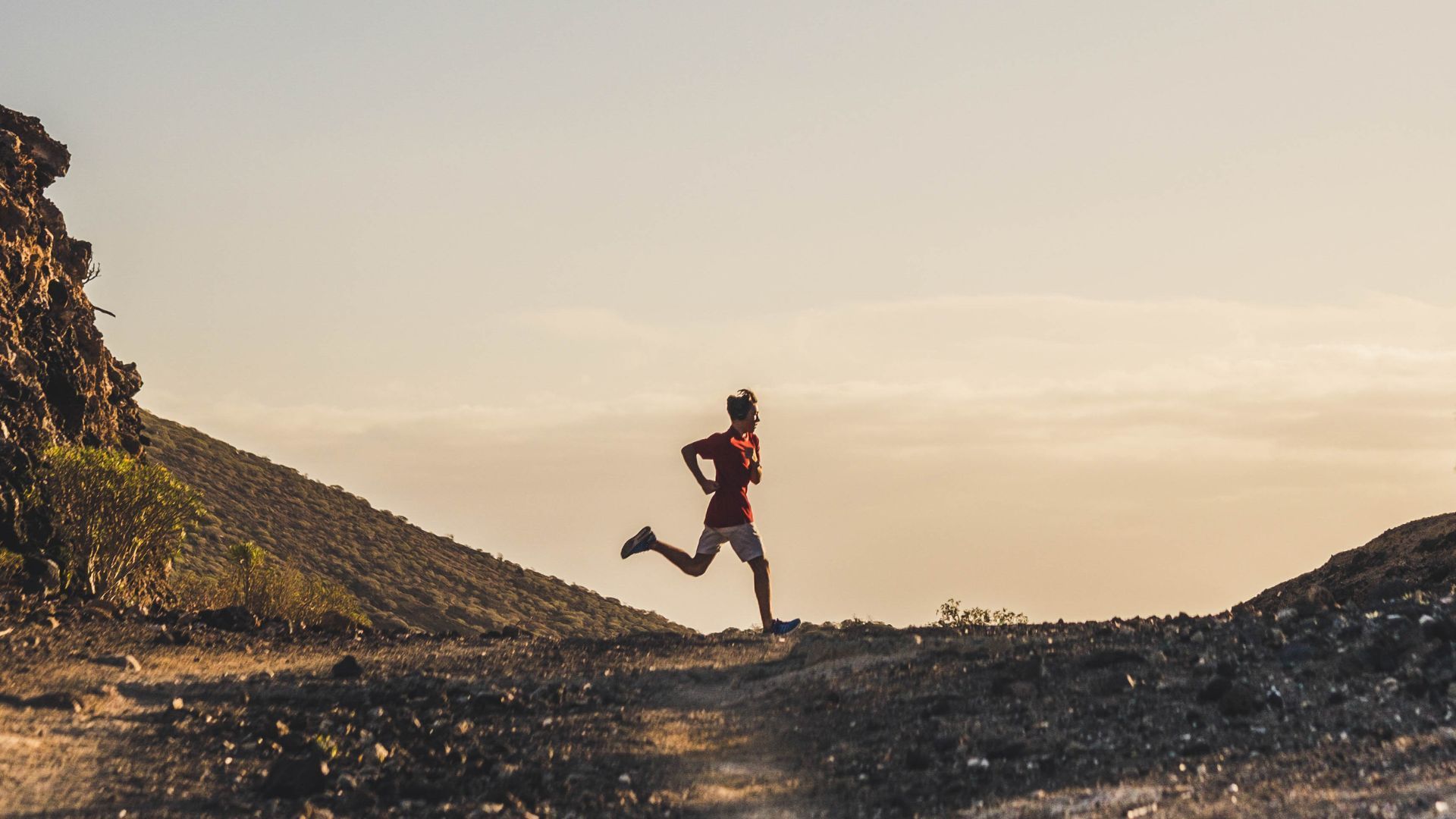
Progress comes from the intelligent use of experience. ~ Elbert Hubbard Yesterday: Run – Casa del Critters/Flume, 1 hour 15 minutes Today: Ride/Hike/Relax Tomorrow: Run/Hike – Pawnee/Buchanan Passes, 6 hours? Yesterday I ran around the house. Not literally, mind you, but in the neighborhood. It was a gorgeous evening – calm, cool. Perfect. The wildflowers are really starting to take off up here and I was treated with a bold display of color throughout my run. Tons of Columbine lined the trailside as I ran on old mining roads and singletrack trails. It is really fun to see how much differently I am able to handle familiar terrain. I used to have difficulties running this loop and would have to walk major sections. Last night, I ran the entire loop without trouble and was able to moderate my speed to maintain a steady cadence through the run. Good times. Contracting is staying steady. A bit of a drop-off this week given the holiday but I am still managing to put in a decent number of hours. I picked up another new project today and will need to get started immediately to ensure that it gets completed on time. Tomorrow, we are going to head up Pawnee Pass and loop back around to Buchanan Pass in the northern Indian Peaks Wilderness. This should be a fun challenge as we’ll get up pretty high, have to navigate some snow (most likely) and will be out for quite awhile. I am looking forward to it for sure . Movie time: I forgot to mention Shopgirl, a Steve Martin vehicle, we watched the other night. I wasn’t quite sure what to expect but found this to be a charming film about loneliness. It was well acted and would recommend it for sure. The pacing is steady throughout and some might find it a little on the slow side but it was an engaging film that had a lot to say without being overly sappy.

In case you hadn’t seen these (and also for my friends at Adventure Film ), here are a couple of must-see running movies from Joel Wolpert: Geoff Roes: Slogging to the Top